
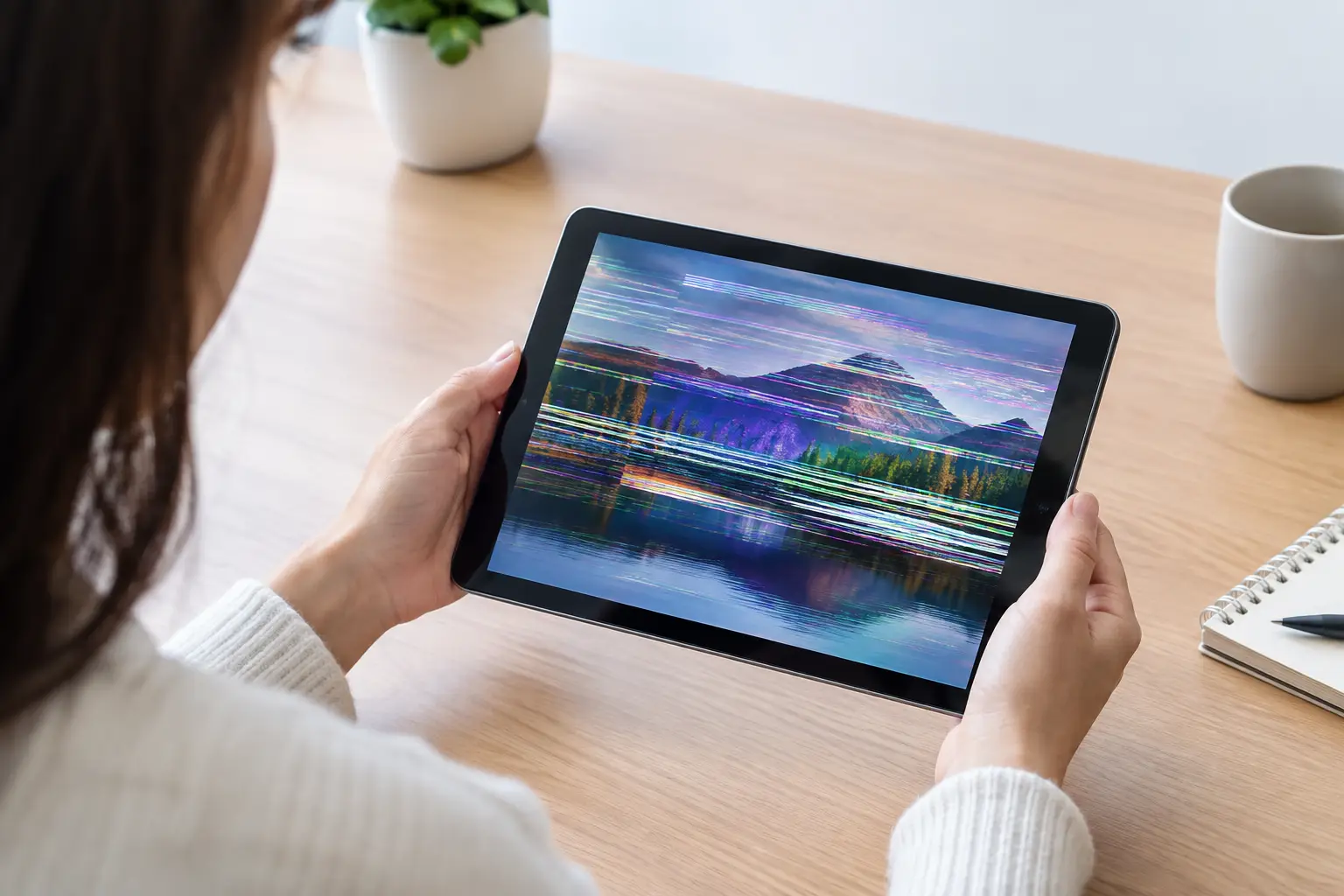
A tablet screen that flashes, pulses, dims, or shows jumping lines can turn a simple homework assignment or streaming session into a headache fast. If you are asking, “why is my tablet flickering,” the answer may be as simple as a software setting – or it may point to a screen, battery, or internal connection that needs attention.
The good news is that flickering does not automatically mean you need a new tablet. A few careful checks can narrow down the cause. If the issue continues, a professional diagnosis can often identify the failed part and get your device back in working order without the cost and hassle of replacement.
Why Is My Tablet Flickering?
Tablet flickering usually falls into one of two categories: a software problem affecting the display, or a hardware issue affecting the screen and the components connected to it. The difference matters. Restarting and updating can resolve software glitches, but a cracked display cable or failing battery will not improve with a settings change.
Pay attention to when the flickering happens. Does it start only in one app? Does it appear while charging? Did it begin after a drop, water exposure, or a recent screen repair? Those details help identify the most likely cause.
A temporary software glitch
Like phones and computers, tablets can get stuck running a process that interferes with screen performance. A flicker that appeared suddenly, especially after installing an app or update, may be temporary. Close open apps, power the tablet off completely, wait about 30 seconds, and restart it.
If the screen behaves normally after restarting but begins flickering again in a particular app, update that app or remove and reinstall it. A single outdated or poorly behaving app can create display issues that look more serious than they are.
An operating system or app update issue
Software updates usually fix bugs, but occasionally a new update introduces a display conflict. Check whether your tablet has another available system update, as manufacturers often release follow-up fixes. Also update your apps through the appropriate app store.
Before installing anything, make sure the tablet has enough battery power and a reliable Wi-Fi connection. Interrupted updates can create additional problems. If flickering began immediately after an update and persists across every app, back up your important photos, school files, and documents before trying more involved troubleshooting.
Brightness, adaptive display, or refresh-rate settings
Some displays can appear to flicker at very low brightness levels. This is more noticeable in a dark room, when reading at night, or when the battery is low. Raise the brightness slightly and see whether the problem changes.
Adaptive brightness, auto-dimming, Night Shift, blue-light filters, battery saver mode, and high-refresh-rate settings can also affect how a screen looks. Try turning these features off one at a time. If the flickering stops after changing a setting, you have found a useful clue without risking your data.
A charging cable, adapter, or power problem
Does your tablet flicker only when plugged in? A damaged cable, low-quality adapter, loose charging port, or inconsistent power source can cause screen instability. Try a known-good charging cable and adapter designed for your device, then test a different wall outlet.
Avoid continuing to use a charger that gets unusually hot, has frayed wiring, or causes repeated connection and disconnection sounds. Charging issues can be inconvenient, but they can also place stress on the battery and charging port over time.
When Flickering Points to Hardware Damage
A tablet can look almost perfect on the outside and still have an internal display problem. The screen assembly includes more than glass. It has a display panel, connectors, cables, and control components that all must work together.
A damaged screen or loose internal connection
A drop can loosen a display connection even if the glass never cracks. Pressure from being sat on, carried in an overstuffed bag, or bent slightly can have a similar effect. Flickering, colored lines, black spots, a screen that works only at certain angles, or touch areas that stop responding often point to display damage.
If your tablet was repaired recently and the flicker began afterward, do not press hard on the screen or attempt to open it yourself. The display may need to be reseated, or a replacement part may be failing. A technician can inspect the connection safely and determine whether the screen needs repair.
Water or moisture exposure
Tablets and moisture do not mix well. A splash, humid bathroom, spilled drink, or wet backpack can leave corrosion inside the device. The screen may flicker right away, or the issue may appear days later as corrosion develops.
Turn the tablet off if you suspect liquid exposure. Do not charge it, heat it with a hair dryer, or put it in rice. Rice does not remove corrosion, and charging a wet device can cause further internal damage. Prompt professional evaluation gives the device the best chance of recovery.
A failing battery
A weak or damaged battery can cause more than short battery life. If it cannot deliver steady power, the display may dim, flash, restart, or behave unpredictably. Watch for other warning signs, including rapid battery drain, unexpected shutdowns, overheating, or a screen that is lifting away from the frame.
A swollen battery is a safety concern. Stop using and charging the tablet if you notice the screen separating from the body, a bulge in the case, or unusual heat. It needs professional service as soon as possible.
Internal board or graphics issues
When flickering continues on the startup screen, appears after a hard reset, or comes with random restarts and charging failures, the problem may involve the tablet’s internal board. These repairs require diagnostic equipment and skilled handling. They are not a good fit for adhesive strips, online repair kits, or trial-and-error parts purchases.
Safe Fixes to Try Before You Bring It In
Start with the least invasive steps. Restart the tablet, install available system and app updates, test it without the charger connected, and adjust brightness and display settings. If you recently installed a new app, remove it and monitor the screen.
Next, check for obvious physical clues. Look for cracked glass, dark patches, screen separation, bent corners, or a loose charging port. Think back to the first time you noticed the issue. A fall, liquid spill, or charger change is often the missing piece of the puzzle.
If your tablet still works well enough, back it up before trying a factory reset. A reset may resolve a deep software conflict, but it erases personal data unless you have a current backup. It also will not fix a cracked panel, loose connector, failed battery, or moisture damage. That is why a reset should be a last software step, not the first response to a flickering screen.
When to Stop Troubleshooting
Stop using the tablet and get it checked if the screen flickers after a drop or water exposure, the device becomes hot, the battery swells, the display lifts from the frame, or the tablet repeatedly turns itself off. These signs can worsen with continued charging or use.
It is also time for a diagnosis when flickering happens everywhere – on the lock screen, in multiple apps, and after restarting. At that point, guessing can lead to unnecessary repairs or a lost backup. A technician can test the display, battery, charging system, and internal connections to identify the actual failure.
For St. Charles and greater St. Louis customers, Mr. Mobile offers free device diagnostics and can often complete tablet repairs the same day, depending on the model and part needed. You get a clear explanation of what is wrong before deciding whether repair makes more sense than replacement.
A flickering tablet is frustrating, but it is often a repairable problem. Protect your data, avoid risky DIY fixes after physical damage or liquid exposure, and have the device checked before a small display issue turns into a tablet you cannot use at all.