
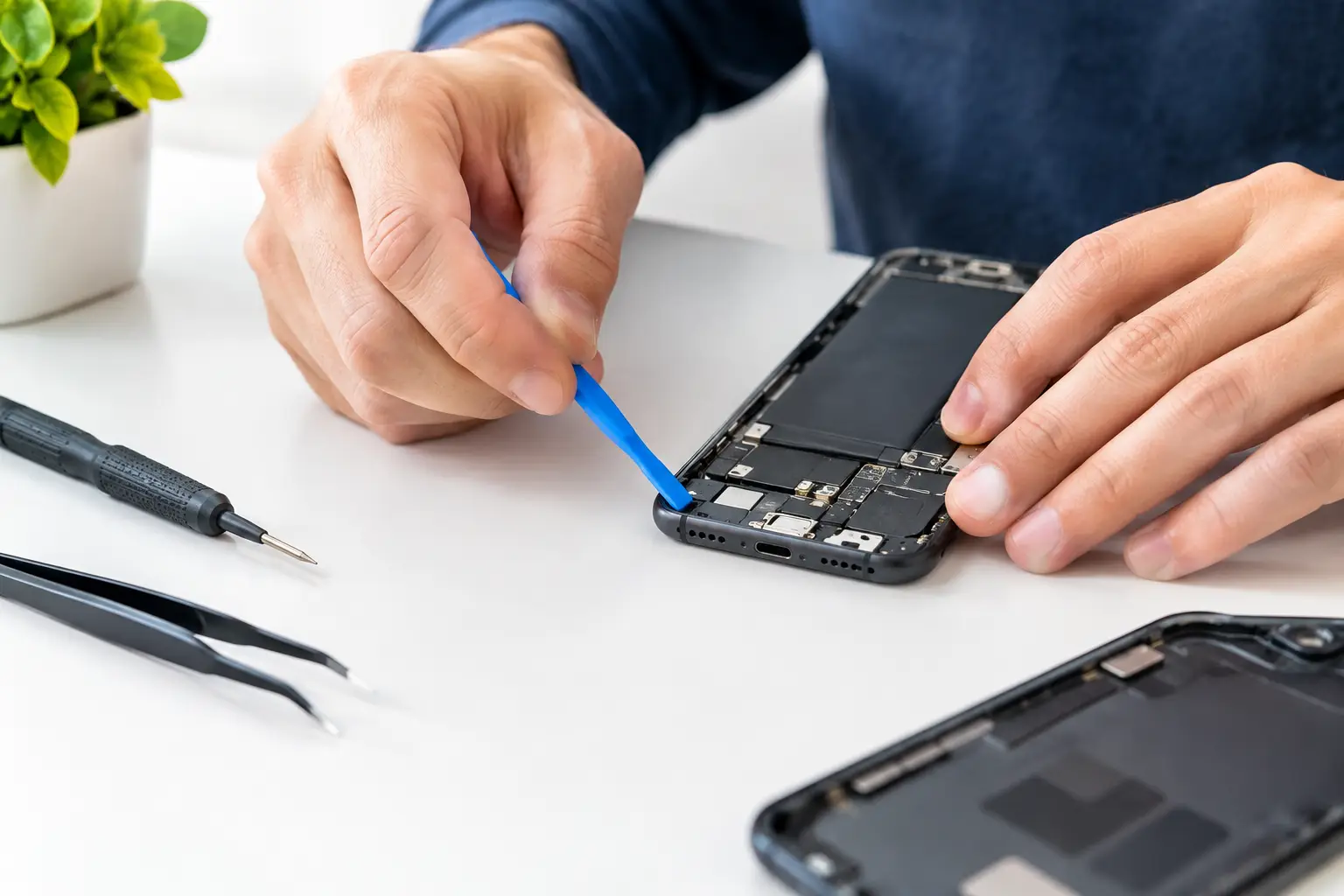
Your phone shows the charging symbol for a second, then stops. The cable only works when bent at a certain angle. Or it slides into the port without the firm click it used to have. Before you replace a device that still has plenty of life left, searching how to fix charging port problems can point you toward a simple answer – or help you recognize when a professional repair is the smarter move.
Charging trouble is not always a broken port. A worn cable, weak wall adapter, dirty port, software issue, or battery problem can create nearly identical symptoms. The goal is to rule out the easy fixes first without damaging the small pins and connectors inside your device.
Start by Confirming It Is Really the Charging Port
A charging port is easy to blame because it is where the cable connects. But cables take daily wear, and adapters can fail without warning. Test your device with a known-good charging cable and wall adapter before inspecting the port. If possible, try the same cable with another device as well.
Pay attention to the result. If a new cable charges your phone normally, the port was never the issue. If every cable feels loose, charging cuts in and out, or the connector will not insert fully, debris or physical port damage is more likely.
Wireless charging can offer another useful clue for compatible phones. If your device charges wirelessly but not through a cable, the battery and most charging circuitry may be working properly. That does not prove the port is damaged, but it narrows the diagnosis.
A device that will not charge either way could have a battery, software, power-management, or board-level issue. That is when a free diagnostic evaluation can save time and prevent paying for the wrong repair.
How to Fix a Charging Port by Cleaning It Safely
Pocket lint is one of the most common reasons a cable stops seating correctly. Each time a phone goes into a pocket, bag, or car cup holder, tiny fibers and dust can collect at the bottom of the port. Over time, that buildup gets packed down by the charging cable.
Turn the device completely off before you clean it. Use a bright light to look inside the port, but do not push anything in blindly. You may see a dense layer of lint that makes the bottom of the port look shallow.
Use a dry, nonmetal tool such as a wooden toothpick or a soft plastic pick. Work slowly along the edges of the port and lift debris outward. The goal is not to scrape hard or force the tool deep into the connector. The pins inside Lightning, USB-C, and Micro-USB ports are delicate, and bending them can turn a cleaning job into a repair.
For a basic at-home inspection, keep it simple:
- Turn off the device and remove its case if it blocks the connector.
- Use a flashlight to check for lint, dust, corrosion, or bent pieces.
- Gently lift out debris with a dry wooden or plastic tool.
- Test the device with a reliable cable and wall adapter after cleaning.
Avoid metal paper clips, sewing needles, tweezers, and anything sharp. They can scratch contacts, bend pins, or create an electrical short if the device is still powered on. Do not pour rubbing alcohol, water, or compressed air into the port. Compressed air can push debris farther inside, while liquid can leave residue or damage components.
If a cable clicks firmly into place after cleaning and starts charging normally, you may be all set. If it still feels loose or only works at a particular angle, stop digging. There may be damage beyond what you can safely fix at home.
Check for Moisture, Corrosion, and Heat
Phones and tablets often warn you when moisture is detected in the charging port. Take that warning seriously. Charging a wet connector can corrode contacts and, in some cases, damage the cable or device.
Disconnect the cable, power down the device if possible, and let it air-dry in a well-ventilated space with the port facing down. Do not use a hair dryer, place the device on a heater, or put it in rice. Excess heat can damage batteries and seals, while rice does not remove moisture from inside the device.
Look for white, green, or dark residue around the connector. That can indicate corrosion, especially after water exposure. Corrosion may prevent charging now, but it can also continue spreading after the device seems dry. A technician can inspect the port and nearby components before a small issue becomes a larger one.
Heat is another warning sign. A warm phone during charging can be normal, particularly with fast charging. A device that becomes uncomfortably hot, smells unusual, repeatedly restarts, or swells near the battery should be unplugged immediately. Do not keep testing cables in that situation. Battery safety comes first.
Restart and Update Before Assuming Hardware Failure
Not every charging problem is physical. A frozen operating system can fail to recognize a charger or show an incorrect battery level. Restart the device, then try charging again with a known-good cable and adapter.
If the device powers on, install pending system updates when practical. Updates can address power-management bugs, although they will not fix a loose or damaged port. Also check whether the charging issue started after a drop, liquid exposure, or an aftermarket accessory was used. That history matters during diagnosis.
For laptops, tablets, and game consoles, try a different compatible power source before assuming the port has failed. These devices may have larger charging connectors, but the same rule applies: a damaged cable, adapter, or power supply can look like a port problem.
Signs the Charging Port Needs Repair
A professional charging port repair may involve cleaning, replacing the port assembly, reconnecting a flex cable, or addressing damage on the device’s board. The correct repair depends on the model and what failed. On some phones, the port is part of a replaceable charging assembly. On others, it requires more involved work.
Bring the device in for an evaluation if you notice any of these signs: the cable will not stay connected, the port is visibly bent or cracked, charging only works when the cable is held in one position, liquid got into the port, or multiple tested chargers fail. A port that feels loose after lint has been removed is especially likely to need more than cleaning.
There is a trade-off to consider with an older device. If the charging-port repair cost is reasonable and the phone otherwise works well, repair is usually far less disruptive than buying a replacement. If the device also has a weak battery, cracked screen, or frequent performance problems, compare the total repair cost with a certified pre-owned replacement. A good shop can explain both options clearly instead of pushing the more expensive one.
What to Expect From a Repair Visit
A technician should start with the basics: testing your cable and adapter, inspecting the port, checking for debris or corrosion, and confirming whether the battery and charging system are responding. That matters because replacing a port will not solve a failed battery or board-level power issue.
At Mr. Mobile, customers can get a free diagnostic evaluation before deciding on a repair. Many common device repairs can be completed the same day, often in 30 to 60 minutes, depending on the model, parts availability, and the extent of the damage. You should receive a clear explanation of the issue and the repair option before work begins.
Back up your data if the device is still usable, especially if it has experienced liquid damage or shuts down unexpectedly. Charging-port work does not normally require data removal, but a backup is always a smart precaution when a device is already acting unpredictably.
Keep the Port Working After the Fix
Once your device is charging correctly again, a few habits can prevent the same frustration from returning. Use quality cables that fit securely, avoid yanking a cord out by the wire, and keep the phone out of lint-heavy pockets when possible. A case with a port cover can help for work sites, gyms, or outdoor use, though it may be inconvenient for everyday charging.
Most of all, do not force a connector that will not fit. USB-C connectors should slide in smoothly either direction. Lightning connectors should seat with a noticeable fit. Resistance usually means debris, a misaligned cable, or damage – not a reason to push harder.
A charging problem can feel urgent when your phone is your calendar, camera, wallet, and connection to everyone who needs you. Start with a careful cable test and safe cleaning. If the port still will not cooperate, a quick professional diagnosis can get you back to a working device without the cost and hassle of replacing it.