
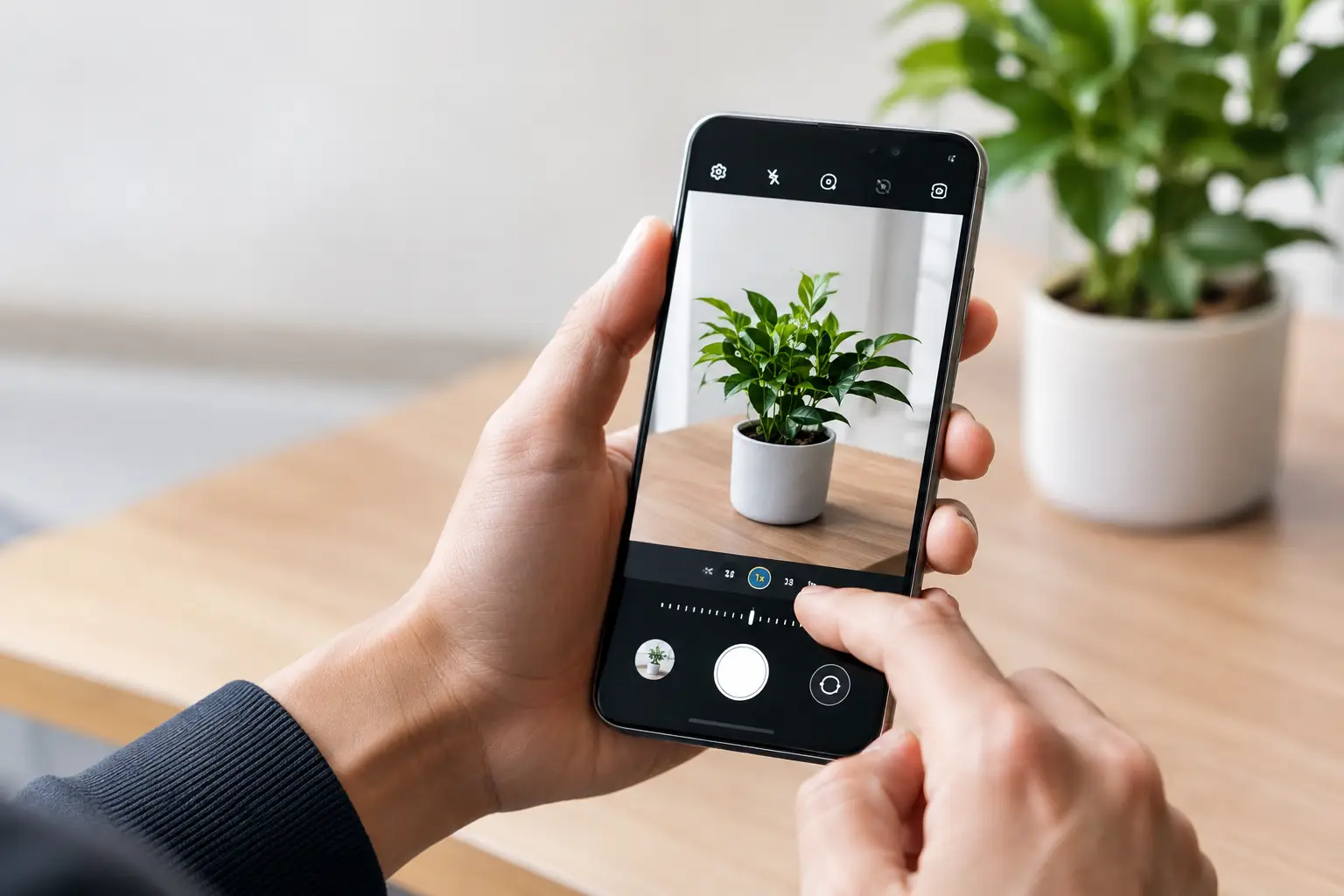
A Samsung camera that will not focus can turn a quick photo of a receipt, homework assignment, or family moment into a blurry mess. Before you replace your phone, try these practical ways to fix Samsung camera focus issues. Many focus problems come from a dirty lens, a software hiccup, or a setting that can be corrected in a few minutes. Others point to camera hardware that needs a professional repair.
Start With the Simple Camera Checks
The camera lens is the first thing to inspect. Fingerprints, pocket lint, makeup, and moisture can confuse the camera and make every shot look soft. Wipe the rear and front camera lenses gently with a clean microfiber cloth. Avoid paper towels, shirt sleeves, or harsh cleaners, which can leave scratches or residue behind.
Next, remove the phone case for a quick test. Some bulky cases, camera lens protectors, and aftermarket attachments sit too close to the camera opening. If a lens protector is cracked, cloudy, or peeling at the edges, take it off and test the camera again. A lens protector can be useful, but a poor fit may affect image quality and focus speed.
Open the Camera app and tap directly on the subject you want to photograph. A focus circle should appear on the screen. Hold the phone still for a moment and make sure you are not trying to focus closer than the camera allows. Very close objects, especially in dim light, may remain blurry unless you switch to the appropriate close-up or macro option on your Galaxy model.
Fix Samsung Camera Focus With a Quick Restart
If the lens is clean but the camera keeps hunting for focus, close the Camera app completely and reopen it. Then restart the phone. This clears temporary app and system issues that can interrupt camera performance.
After the restart, test both the front and rear cameras. Also switch between available lenses, such as standard, ultra-wide, telephoto, and macro modes if your model has them. This matters because one faulty lens can cause problems while the others work normally. If only one camera mode produces blurry photos, that is a useful clue for diagnosis.
Try the camera in good natural light. Samsung cameras may struggle to lock focus in a dark restaurant, a poorly lit room, or when aimed at a plain surface with little contrast. Good lighting gives the camera more detail to work with and helps separate a lighting limitation from a phone problem.
Check Camera Settings and Software Updates
A software setting can occasionally make the camera feel slow or unreliable. Start by resetting the Camera app settings. Open the Camera app, tap the Settings icon, scroll down, and choose Reset settings. This restores camera preferences without deleting your photos or videos.
If you use third-party camera, social media, document scanning, or video apps, test the phone’s built-in Camera app first. If the Samsung Camera app focuses correctly but another app does not, the issue is likely with that app’s permissions, update, or cache rather than the camera hardware.
It is also worth checking for software updates. Go to Settings, choose Software update, and check for available updates. Camera improvements and bug fixes are often included with system updates. Update individual apps through the Galaxy Store or Google Play as well, especially if the focus issue only happens in one app.
If the problem began right after installing a new app, restart your phone in Safe Mode. Safe Mode temporarily prevents downloaded apps from running. If the camera focuses normally there, an app conflict may be causing the issue. Remove recently installed camera-related apps one at a time until performance returns to normal.
Clear the Camera App Cache
Clearing the Camera app cache can remove temporary files that may be causing glitches. Go to Settings, select Apps, find Camera, then choose Storage. Select Clear cache. Do not choose Clear data unless you are comfortable resetting all Camera app preferences, although it will not erase pictures stored in your gallery.
Once the cache is cleared, restart the phone and take a few test photos. Test an object at arm’s length, something farther away, and text on a piece of paper. The camera should move between focus distances without repeated clicking, shaking, or getting stuck on a blurry image.
When a Focus Problem Is Probably Hardware Damage
Software fixes will not solve a damaged camera module. If your Samsung was dropped, bent, exposed to water, or repaired after an accident, the focus mechanism may be physically affected. Modern phone cameras contain tiny moving components that adjust the lens. A hard impact can knock those parts out of alignment even when the outer camera glass looks fine.
Common signs of a hardware issue include a camera that shakes or vibrates, repeated clicking or buzzing sounds, one lens that never focuses, or a focus problem that remains after resets and updates. You may also notice that photos are clear at one distance but permanently blurry at another. A cracked camera lens cover can create haze, glare, and soft spots that look like a focus issue.
Do not press hard on the camera area or repeatedly tap the phone against your hand to make it work. That can worsen a loose component or cause additional damage. Avoid opening the device yourself, too. Samsung phones are tightly assembled, and a DIY camera repair can damage the back glass, battery, wireless charging components, or water-resistance seals.
Get a Clear Diagnosis Before Replacing Your Phone
A camera that cannot focus does not automatically mean you need a new phone. In many cases, replacing the affected camera module or damaged lens cover restores normal photo quality for far less than the cost of a replacement device.
At Mr. Mobile, technicians can inspect the camera, test individual lenses, and identify whether the issue is software-related, lens damage, or a failed camera component. A free diagnostic helps you understand what is wrong before you commit to a repair. For many common phone repairs, same-day service is available, so you can get back to scanning documents, taking photos, and using your phone normally without a long wait.
Back up your phone before any repair visit if you can. Camera repairs typically do not require data removal, but a current backup is always smart whenever your device has been dropped, exposed to moisture, or is acting unpredictably.
A Quick Decision Guide
If the camera begins focusing after cleaning the lens, restarting the phone, or resetting Camera settings, keep an eye on it and update the device when updates are available. If only a third-party app has trouble focusing, update or reinstall that app before assuming the phone needs service.
If the focus issue started after a drop, water exposure, or a cracked camera lens, skip the repeated resets and have the phone checked. The longer a damaged camera module is left in place, the more frustrating it becomes when you need a clear photo quickly. A focused camera is not a luxury when your phone handles work, school, payments, memories, and everyday details – it is one less thing you should have to fight with.